
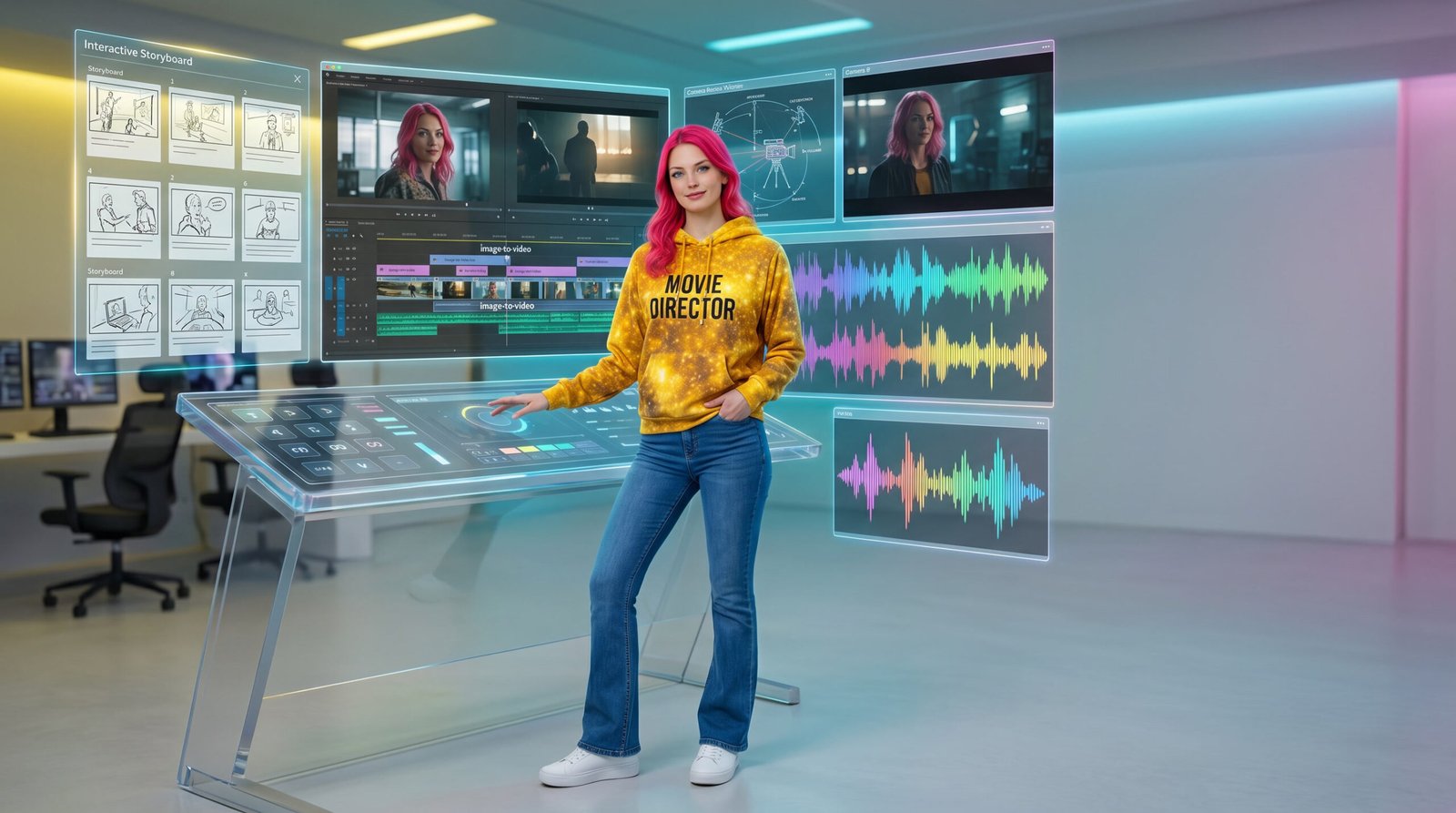
Grok Imagine 1.5 for creators: why this test matters
If you have spent any time testing AI video tools, you already know the struggle. A still image can look beautiful, the prompt can sound perfect, and then the video comes back with face drift, strange motion, unstable lighting, or a scene that forgets what you were trying to direct.
That is why Grok Imagine 1.5 caught my attention. This release is not only about generating another short clip. It is about whether image-to-video can become more useful for creators who are building characters, scenes, tutorials, social clips, YouTube B-roll, and brand visuals.
One image, one prompt, one generation
For this post, I tested the examples in the simplest way possible. Each video example uses one source image, one prompt, and one generation.
Every video you see here is the exact result I got from running the prompt once. I did not pick the best version from ten generations.
The creator question: Can Grok Imagine 1.5 turn a still image into a usable cinematic clip without needing ten retries just to get something worth showing?
What is Grok Imagine 1.5?
Grok Imagine 1.5 is xAI’s image-to-video preview model. In creator terms, that means you can start with a still image you already like, add a motion prompt, and have the model turn that source image into a short animated video clip.
That matters because image-to-video gives creators more control than starting from a blank prompt. The source image helps anchor the character, style, composition, lighting, and overall look before the model begins adding motion.
Why the source image matters
When the image is already strong, the model has less to invent. That can help reduce some of the common AI video problems, like losing the face, changing the outfit, or drifting away from the original composition.
Start with a still image
The image becomes the anchor for character identity, composition, lighting, and visual style.
Write a motion prompt
You guide the camera move, subject motion, atmosphere, physics, and audio direction.
Generate a short clip
The model animates the scene while attempting to preserve the source image.
Edit into a workflow
The final clip can become B-roll, a social teaser, a scene test, or part of a larger edit.
Grok Imagine 1.5 for creators: workflow example
This first example shows the basic idea behind the workflow: a starting image, a motion prompt, camera direction, audio layer, generated clip, and final edit timeline.
The goal was to see whether Grok Imagine 1.5 could animate a clean tutorial-style scene without making the interface chaotic.
Copy the prompt used for this video
Why image-to-video is the creator workflow to watch
Text-to-video is exciting, but image-to-video is often more controllable. When you start with a still image, you already have a visual anchor.
The character, outfit, composition, lighting, palette, and world style are already established. That gives the model a clearer starting point.
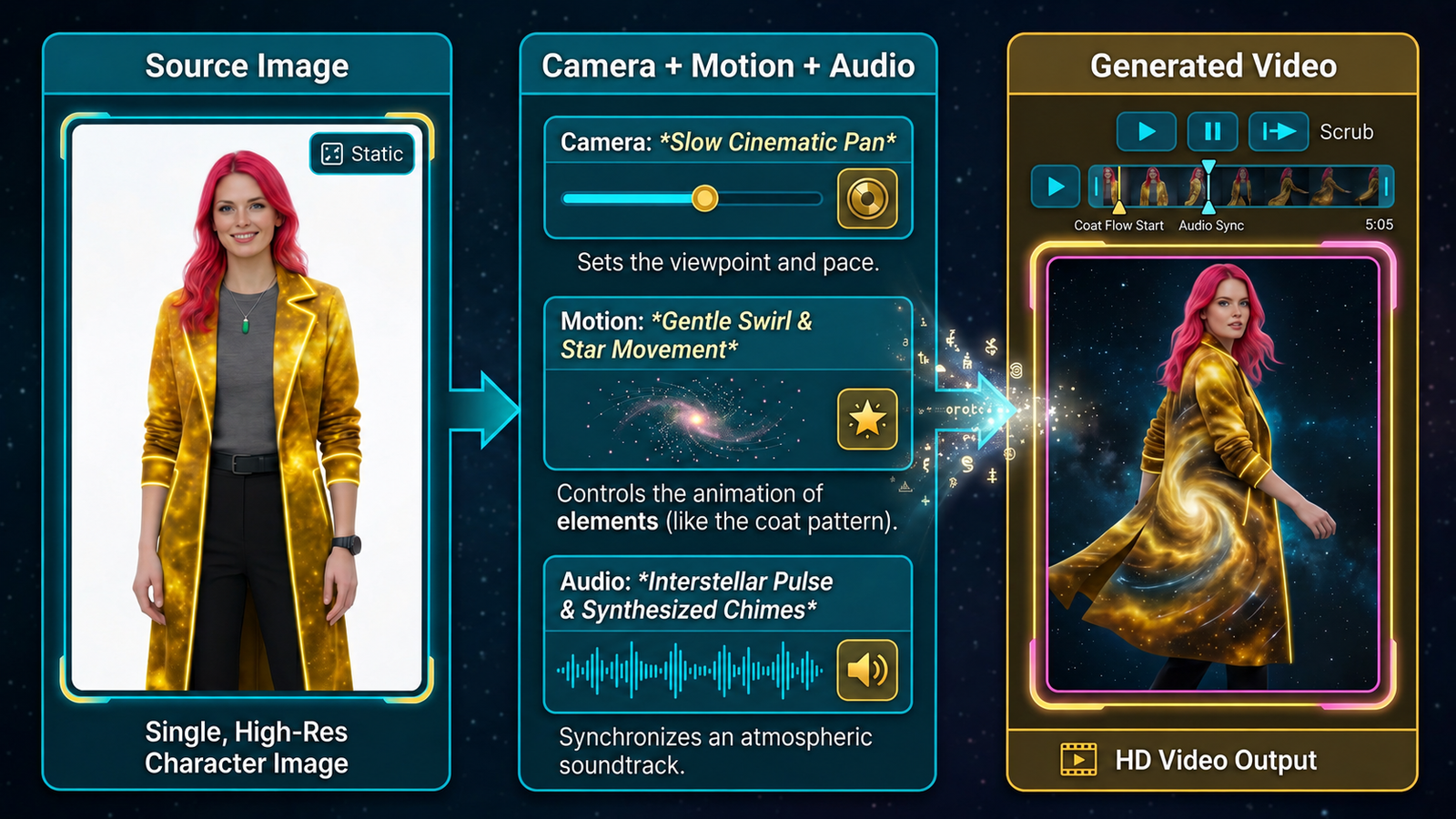
Control is the real creator advantage
One of the biggest problems in AI video has been consistency. The model may understand the vibe, but the face changes. Or the outfit shifts. Or the camera does something completely different than what you asked for.
With Grok Imagine 1.5, the best results will likely come from treating the model like a motion director, not a mind reader.
Prompting Grok Imagine 1.5 for creators
For this example, I wanted to test whether Grok Imagine 1.5 could handle a cleaner educational layout.
This matters for creators because AI video is not only about fantasy scenes. Sometimes we need tutorial visuals, workflow explainers, and branded B-roll that does not fall apart visually.
Copy the prompt used for this video
The prompt formula I would use
The biggest mistake with AI video prompts is writing them like image prompts. A video prompt needs direction.
It needs motion, pacing, and stability instructions. It should tell the model what should stay the same and what should move.
1. Preserve the source
Start with identity-lock language: preserve the character, pose, clothing, lighting, and composition from @image1.
2. Describe the action
Give one clear action. A short clip works better when it has one main motion idea.
3. Direct the camera
Use terms like slow push-in, orbit, crane pullback, tracking shot, or dolly forward.
4. Add audio intent
Guide ambience, subtle sound effects, music mood, chimes, hums, wind, or interface beeps.
My best formula: Preserve the character from @image1 + environment + one clear action + camera movement + motion details + lighting + audio + consistency instructions.
Cinematic example for Grok Imagine 1.5
This is the kind of scene where image-to-video can really shine. Fantasy-tech visuals already have things that want to move.
Glowing particles, flowing fabric, energy swirls, skyline lights, and atmosphere give the model something cinematic to animate.
Copy the prompt used for this video
What Grok Imagine 1.5 seems to do well
Based on these one-shot tests, Grok Imagine 1.5 for creators feels strongest when the scene already has a clear subject and the prompt gives it a focused motion plan.
It especially fits short cinematic clips, creator B-roll, fantasy-tech moments, and workflow visuals.
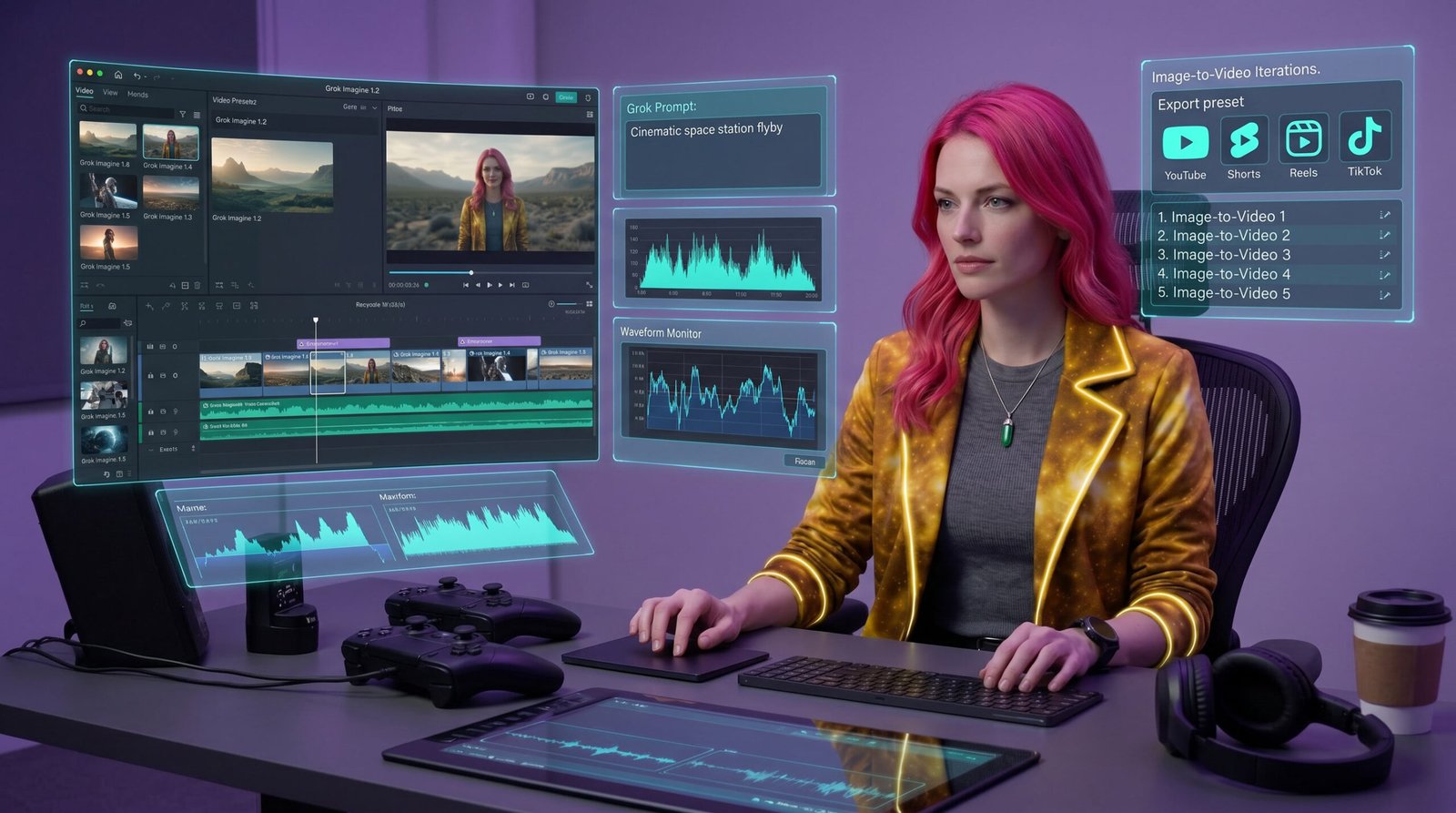
Strong use cases for creators
- Character-driven scenes: one main subject with clear composition gives the model a better anchor.
- Cinematic camera moves: slow push-ins, dolly moves, and gentle orbit shots are easier to control.
- Atmospheric motion: particles, glow, fabric, light pulses, waveforms, and interface panels are strong use cases.
- Creator explainers: workflow boards and prompt-framework visuals can become useful blog and YouTube B-roll.
- Short-form testing: one-shot clips are quick enough to test without turning the workflow into a full production day.
Practical AI video workflow example
AI video does not stop once the generation is done. For creators, the real workflow is what happens next.
We still have to review the clip, trim it, match it to a script, add voiceover, layer music, and turn it into content people can actually watch.
Copy the prompt used for this video
Bonus workflow animation
This one is more educational than cinematic. I wanted to see if a three-panel infographic could animate without losing the basic message.
This kind of clip could be useful for tutorials, blog sections, and social posts where you need the audience to understand the workflow quickly.
Copy the prompt used for this video
Bonus AI video director clip
This clip is more of a branded hero-style scene. It shows how a creator could use Grok Imagine 1.5 to make a short visual intro from a still image.
The goal was not a long story. The goal was a usable motion moment.
Copy the prompt used for this video
What creators can use it for right now
I would not think of Grok Imagine 1.5 as a replacement for editing. I would think of it as a fast motion-testing tool that can help you create usable short clips from strong images.
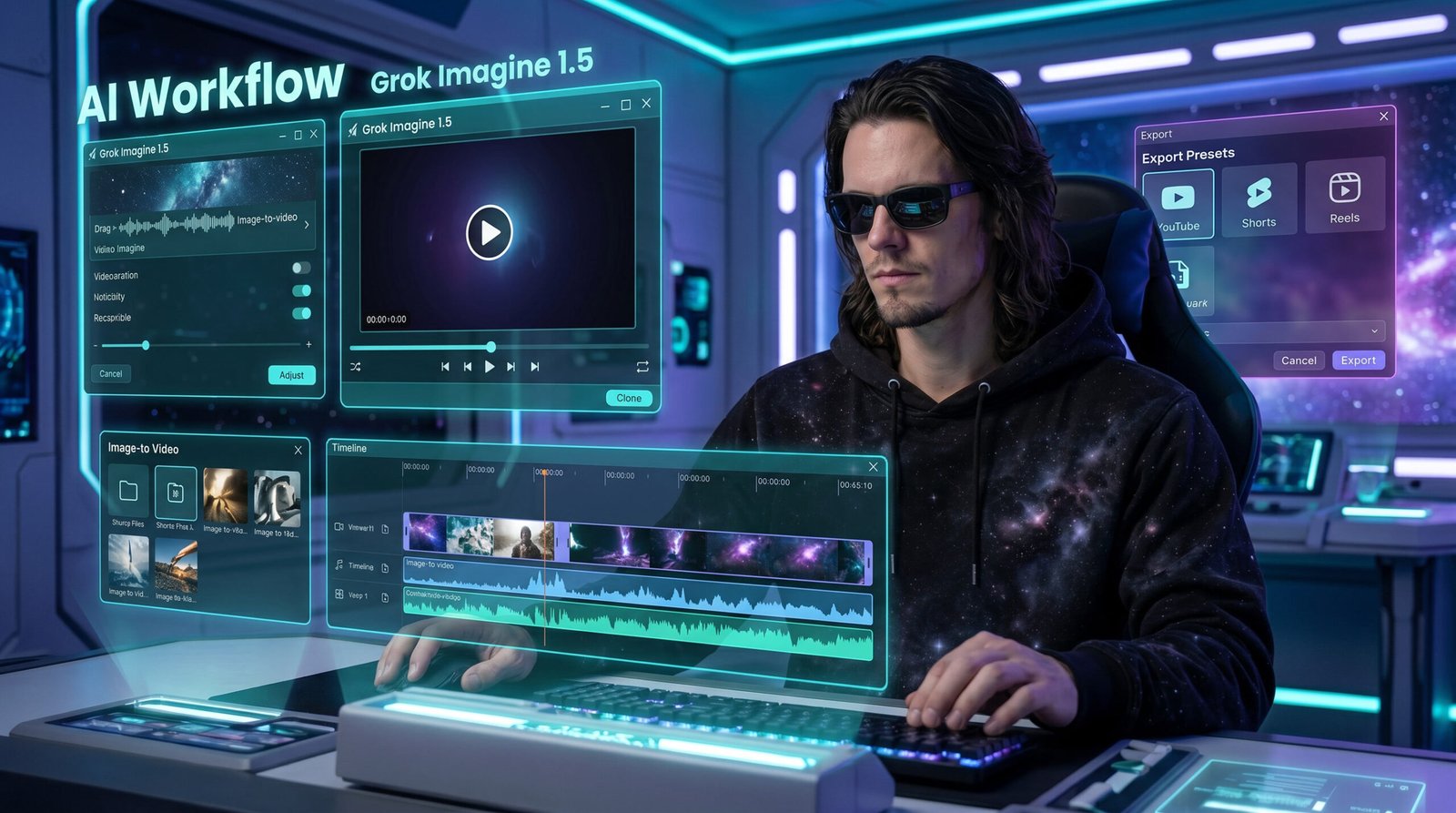
Practical creator uses
- YouTube B-roll: short cinematic clips that support tutorials, tool reviews, and AI news.
- Character intros: turning a still character image into a quick branded motion moment.
- Social teasers: 6 to 10 second visual hooks for Shorts, Reels, TikTok, or X.
- Workflow explainers: animated boards, prompt frameworks, and process graphics.
- Fantasy-tech scenes: cinematic test shots for worldbuilding, storytelling, or visual experiments.
- Product and brand visuals: source images with subtle camera movement, glow, atmosphere, and sound direction.
What I would still watch for
Even when a model is improving, AI video still has limits. I would not expect perfection on the first generation every time.
These examples came out strong in one shot, but the bigger point is learning what the model is good at and building around those strengths.
Text can still be risky
Use text carefully. If it matters, keep it large, simple, and already present in the source image.
Fast action is harder
Complex choreography, dense physics, or multiple moving subjects may need more retries.
Short clips work best
Think in scenes and fragments instead of trying to generate a full video in one pass.
Editing still matters
The best creator results come when AI generation feeds into a real editing workflow.
The real shift is learning to direct AI video
Grok Imagine 1.5 for creators shows where AI video is heading. The image is no longer the end of the creative workflow.
A still image can become the first frame of a scene, the anchor for a motion test, or the starting point for a larger video system.
For creators, that means prompting is becoming more like directing. You are guiding the camera, the atmosphere, the timing, the audio, the subject preservation, and the final purpose of the clip.
Bottom line: the future of AI video belongs to creators who can think like visual directors, not just prompt writers.
Sources and further reading
This article is based on xAI’s Grok Imagine 1.5 announcement, xAI’s model documentation, and hands-on one-shot creator tests created for The Real AI Agents.
Want better AI video workflows?
Explore the Prompting Hub to learn how stronger prompt structure, source-image direction, motion language, and creator workflow thinking can help you get more usable results from AI tools.