
Airtable for AI Content Creators: How to Build a Smarter Workflow System
AI work can get scattered fast. Prompts, generated images, video tests, reference files, content calendars, captions, and review notes all start living in different places. Airtable gives creators a flexible way to turn that creative chaos into a searchable, visual, repeatable system.

Disclosure: This article contains an Airtable referral link. If you create an account through this link, The Real AI Agents may receive Airtable account credits at no additional cost to you.
What Is Airtable?
Airtable is a flexible database platform that can feel familiar if you have used spreadsheets, but it becomes much more powerful when you start using views, linked records, attachments, filters, grouping, and automations. Instead of forcing every idea into one flat sheet, Airtable lets creators build a system around the way their work actually moves.
At TRAIA, Airtable started as a way to track prompts and compare what those prompts could produce across different AI platforms. Over time, it became useful for product tracking, file organization, prompt libraries, educational sharables, and AI creator workflow planning.
Why AI Creators Need Better Workflow Systems
AI creation produces a lot of moving pieces. One project might include a research note, a prompt, five image versions, a favorite output, an upscaled version, a short video test, a caption, a thumbnail, a publish date, and a performance note. Without a system, even a good idea can become hard to find later.
The biggest problem is not usually a lack of ideas. It is a lack of structure around the ideas that are already working.
Prompt history gets lost
When prompts are scattered across chats, notes, screenshots, and project folders, it becomes difficult to remember which prompt created which result.
Visual references pile up
AI images, character references, thumbnails, and test renders need more than a folder. They need context, status, and review notes.
Approvals need documentation
When you are building a dataset, product, video, or campaign, it helps to know what is approved, what needs attention, and what should be rejected.
Content calendars need structure
Publishing is easier when ideas, assets, platforms, statuses, and deadlines live inside one connected production system.
A good AI workflow system does not make you less creative. It protects your creative energy from getting drained by searching, guessing, and rebuilding the same thing twice.
Why Airtable Works So Well for AI Workflows
Airtable works well for AI creators because it can organize both information and visual assets. You can store prompts, attach files, rate outputs, link related records, filter by status, and switch between different views without rebuilding the database every time.
| Airtable Feature | Why It Helps AI Creators | Example Use |
|---|---|---|
| Grid views | Organize large amounts of structured data in rows and columns. | Prompt libraries, image metadata, content plans, tool comparisons. |
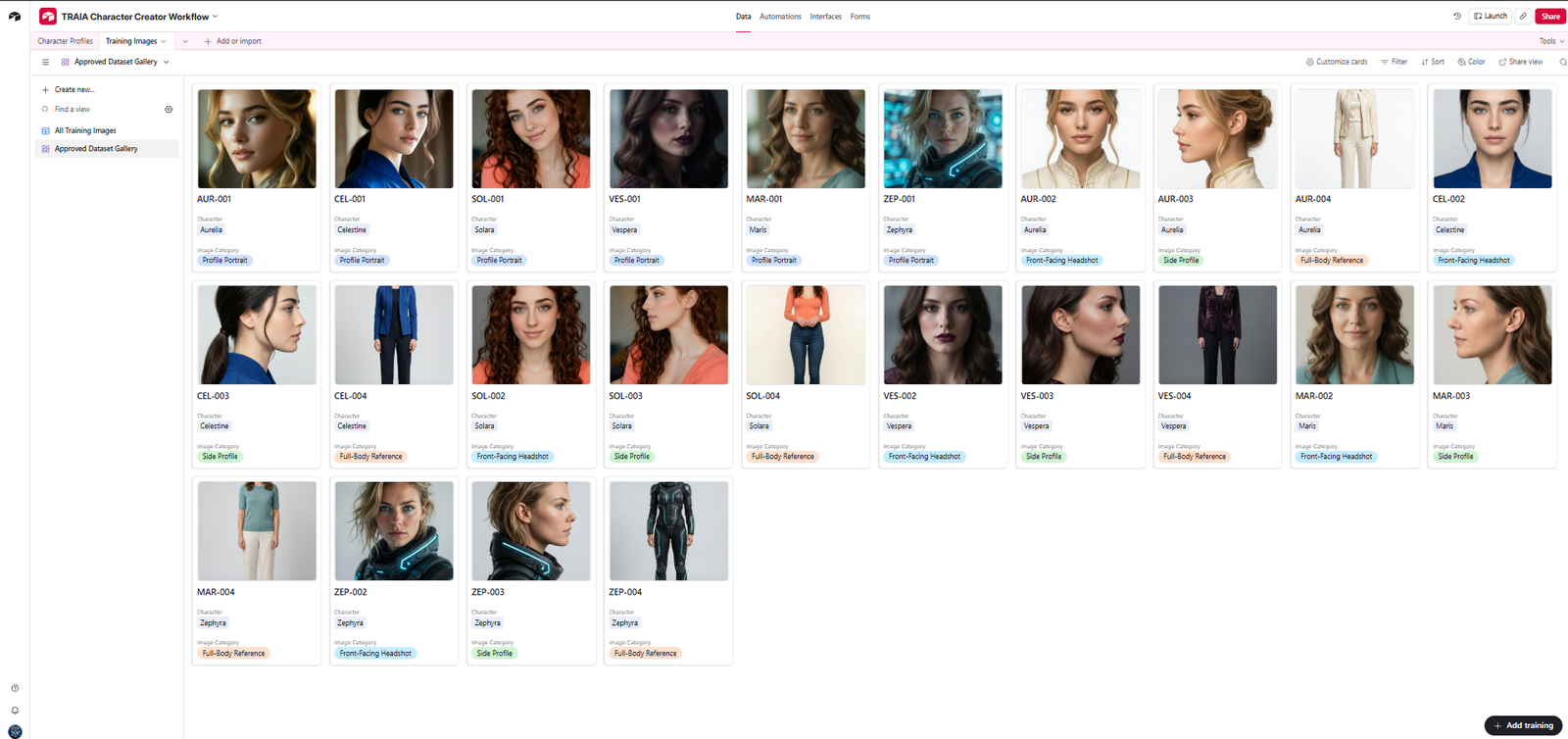
| Gallery views | Turn image-heavy projects into visual cards instead of plain rows. | Character profiles, approved image datasets, thumbnail libraries. |
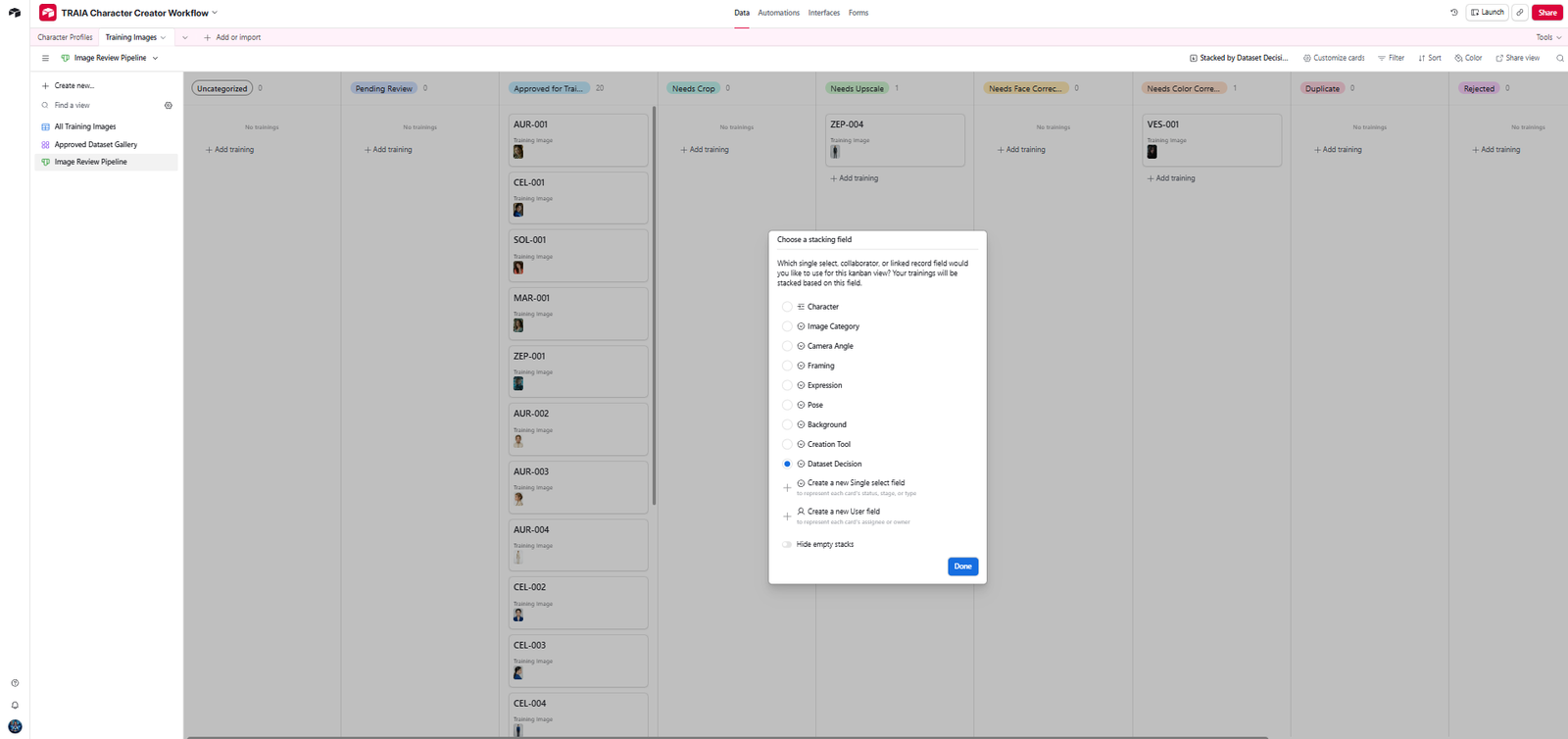
| Kanban views | Move records through workflow stages by status. | Draft, in progress, needs review, approved, scheduled, published. |
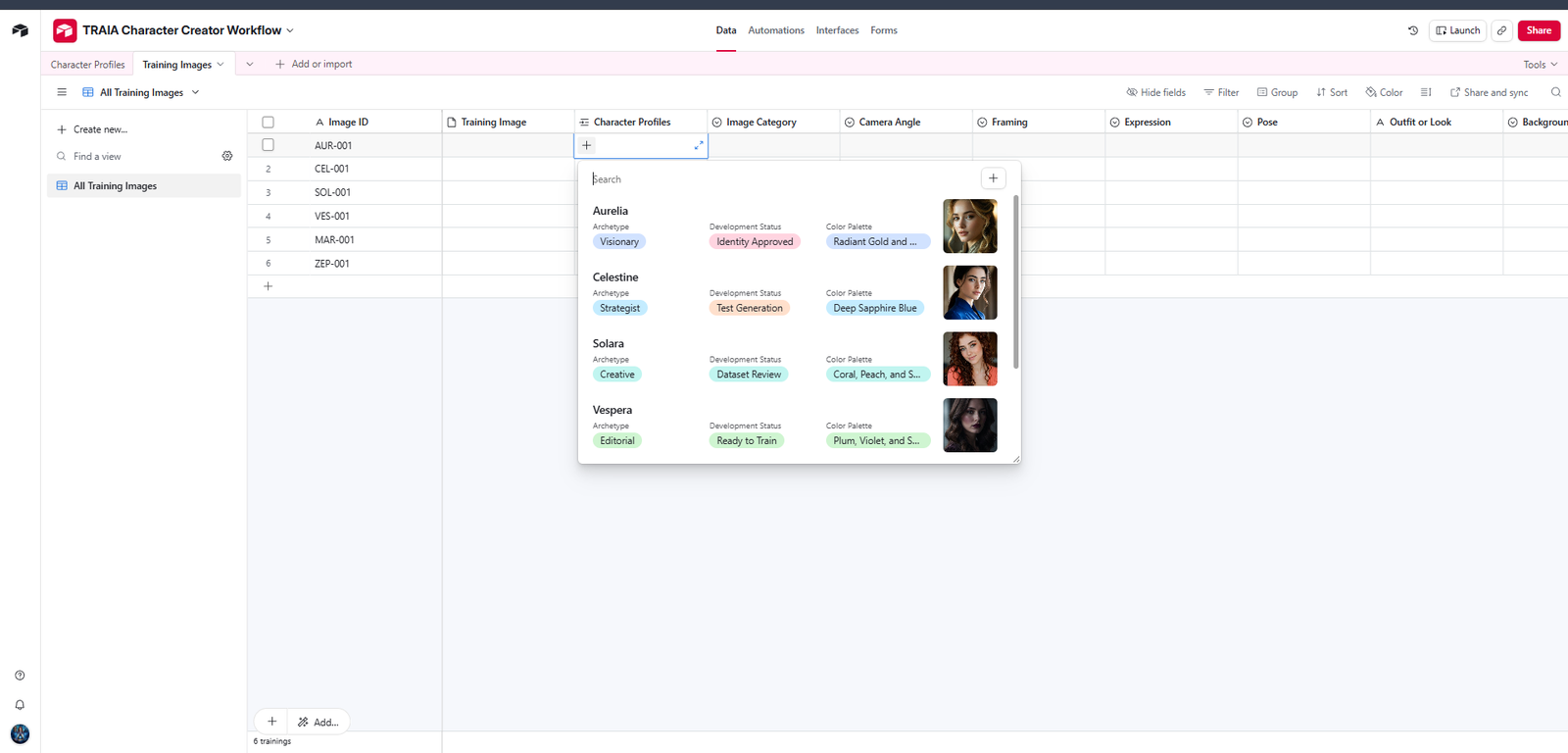
| Linked records | Connect related tables without duplicating the same information. | Link each training image back to the correct character profile. |
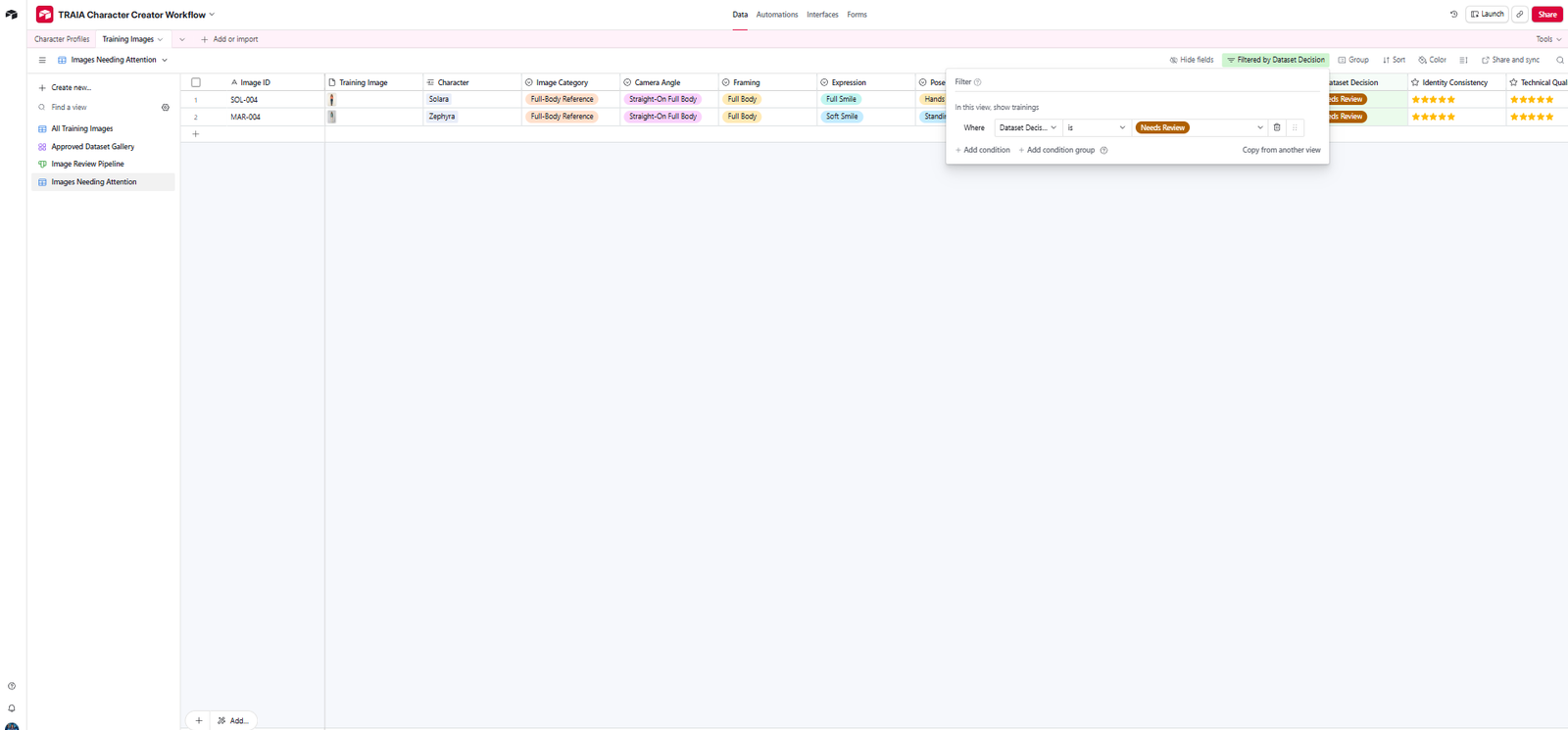
| Filters and grouping | Quickly surface the records that need action. | Show only images that need cropping, upscaling, face correction, or approval. |
| Attachments | Keep files connected to the records they belong to. | Images, PDFs, videos, screenshots, reference files, and scripts. |
| Automations | Trigger repeatable actions when records change. | Notify a collaborator when a record moves to review or update a status when a form is submitted. |
The learning curve is real in the beginning, especially when you are deciding how to set up your bases for the end result you want. But once the structure clicks, Airtable becomes more than a spreadsheet. It becomes the coordination layer for your creative system.
Example Workflow: An AI Character and Image Training Database
For this guide, we are using a fictional AI character and image-training database as the example workflow. This is a helpful demo because it shows how Airtable can manage visual assets, prompts, decisions, approvals, linked data, and repeatable creative processes all in one place.
The fictional demo characters include Aurelia, Celestine, Solara, Vespera, Maris, and Zephyra. The point is not the characters themselves. The point is the structure: each character has an identity profile, and each training image has metadata, review notes, ratings, and a decision.
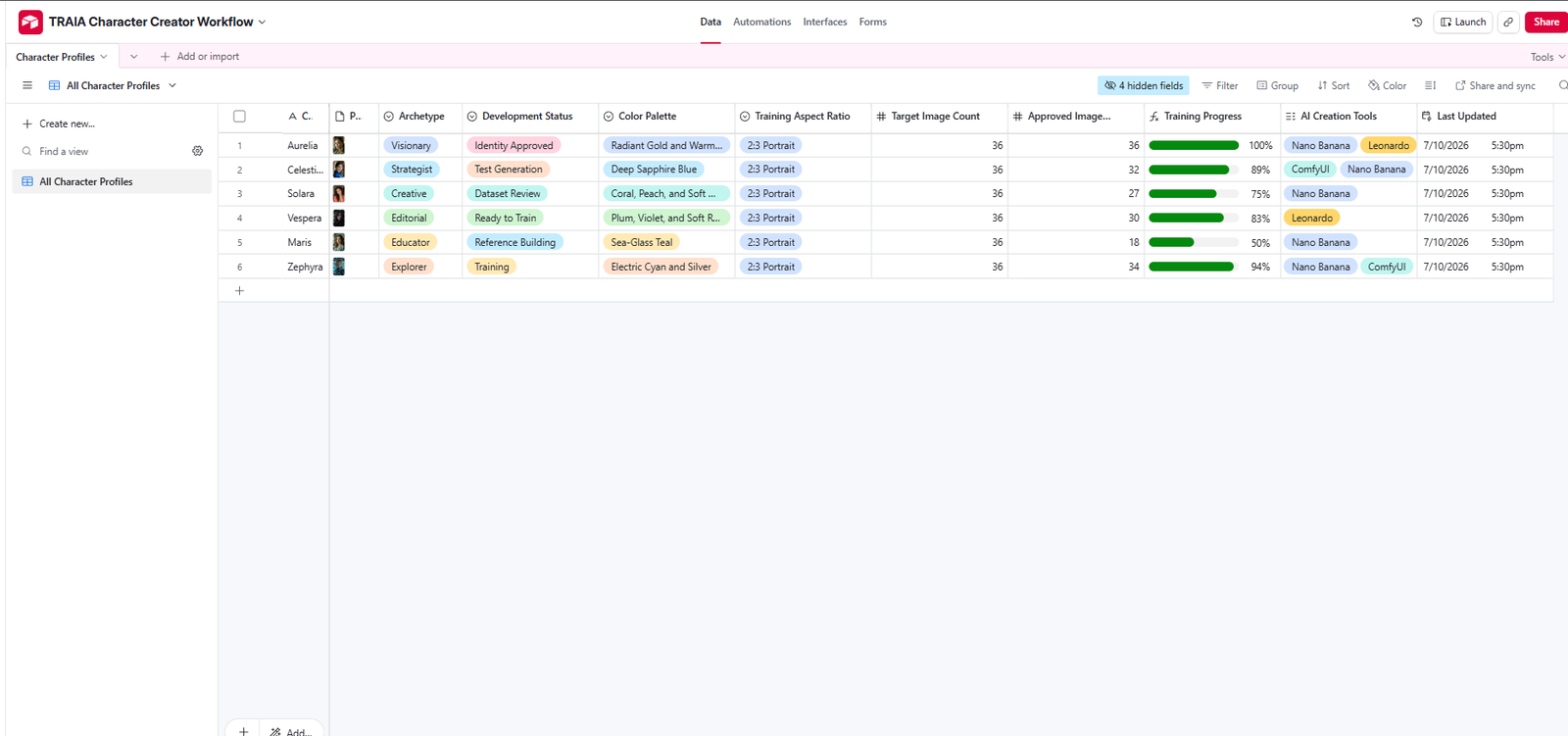
Table One: Character Profiles
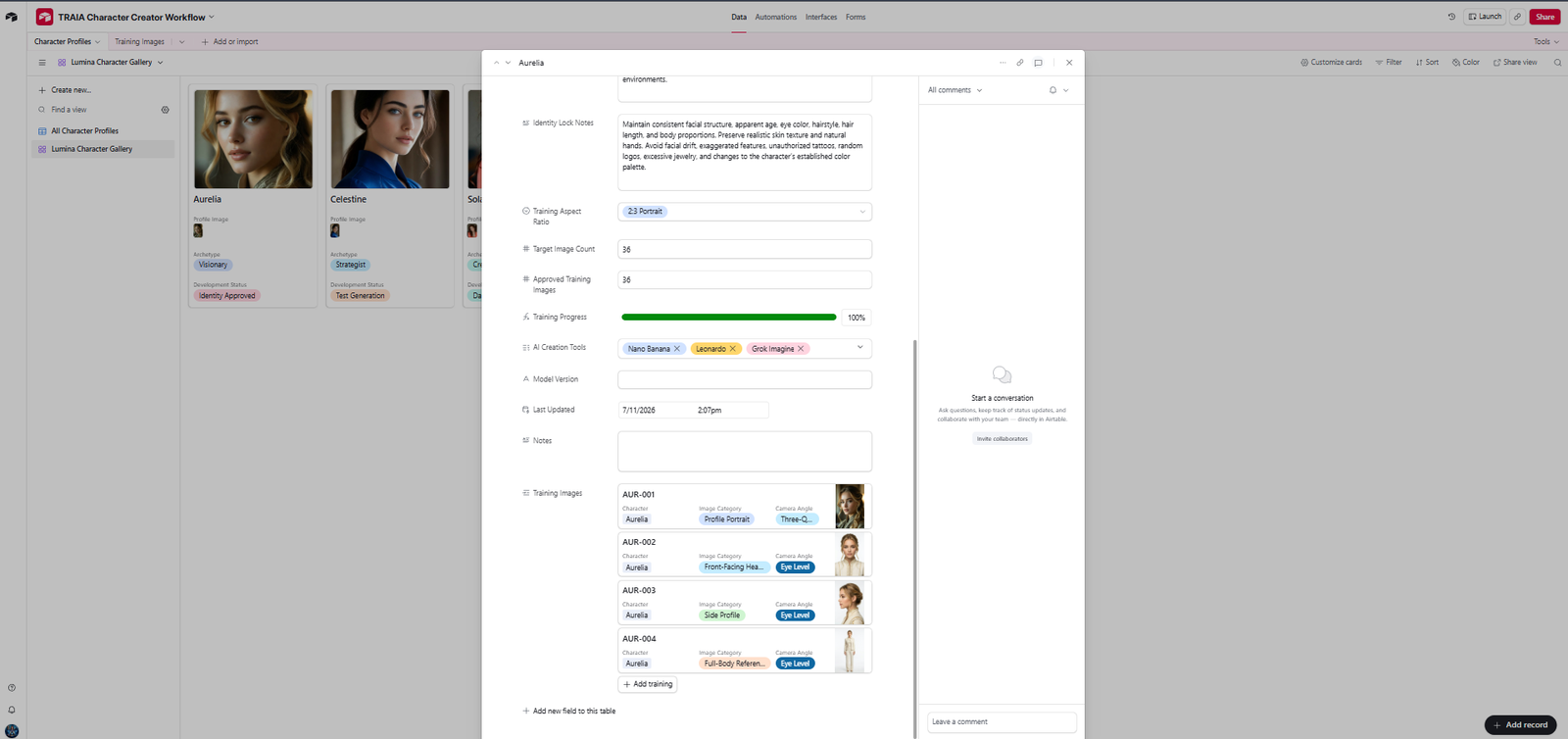
The first table is the source of truth for each character identity. This is where the core profile lives: who the character is, what they look like, what their style rules are, which tools are being used, and how far along the training process is.
Helpful fields for a Character Profiles table
- Character Name
- Profile Image
- Archetype
- Development Status
- Color Palette
- Training Aspect Ratio
- Target Image Count
- Approved Training Images
- Training Progress
- AI Creation Tools
- Visual Identity Summary
- Identity Lock Notes
- Model Version
- General Notes
For AI character consistency, this matters because every future prompt, reference image, and training decision should point back to the same identity rules. When a creator, collaborator, or AI agent needs to understand the character, they can open one record instead of searching through scattered notes.
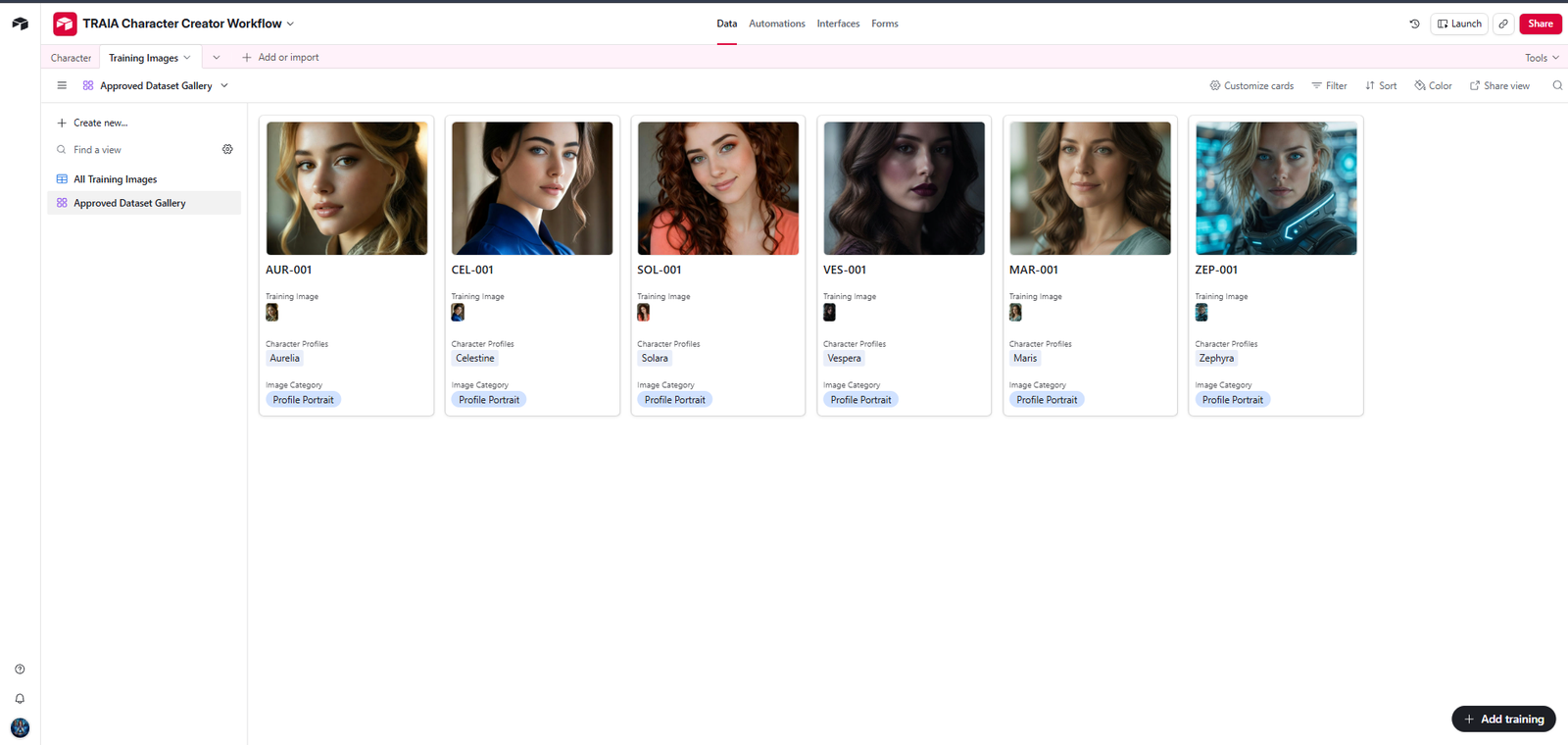
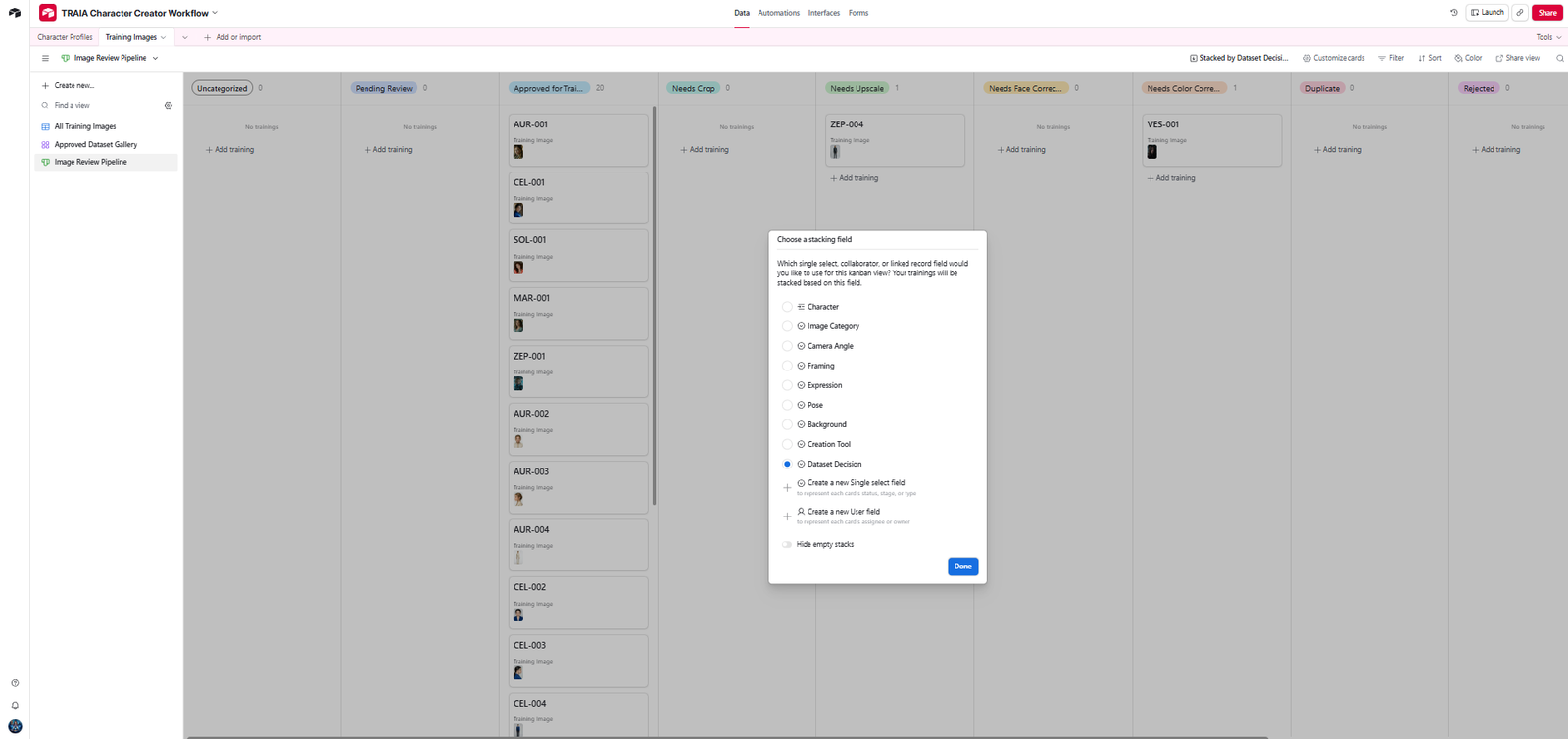
Table Two: Training Images
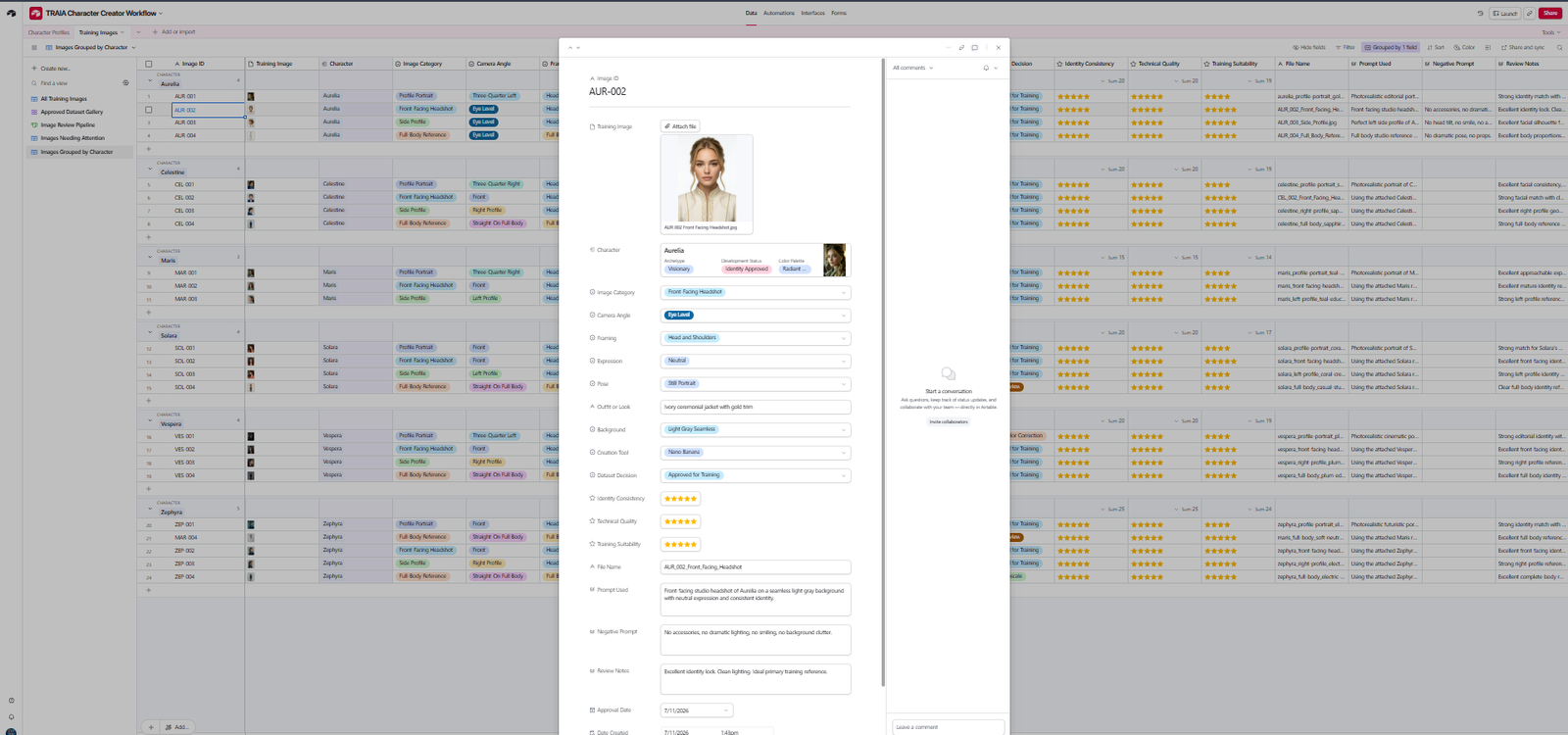
The second table is where each image becomes a documented, reviewable training asset. This is the table that turns a folder of image files into a usable dataset.

Helpful fields for a Training Images table
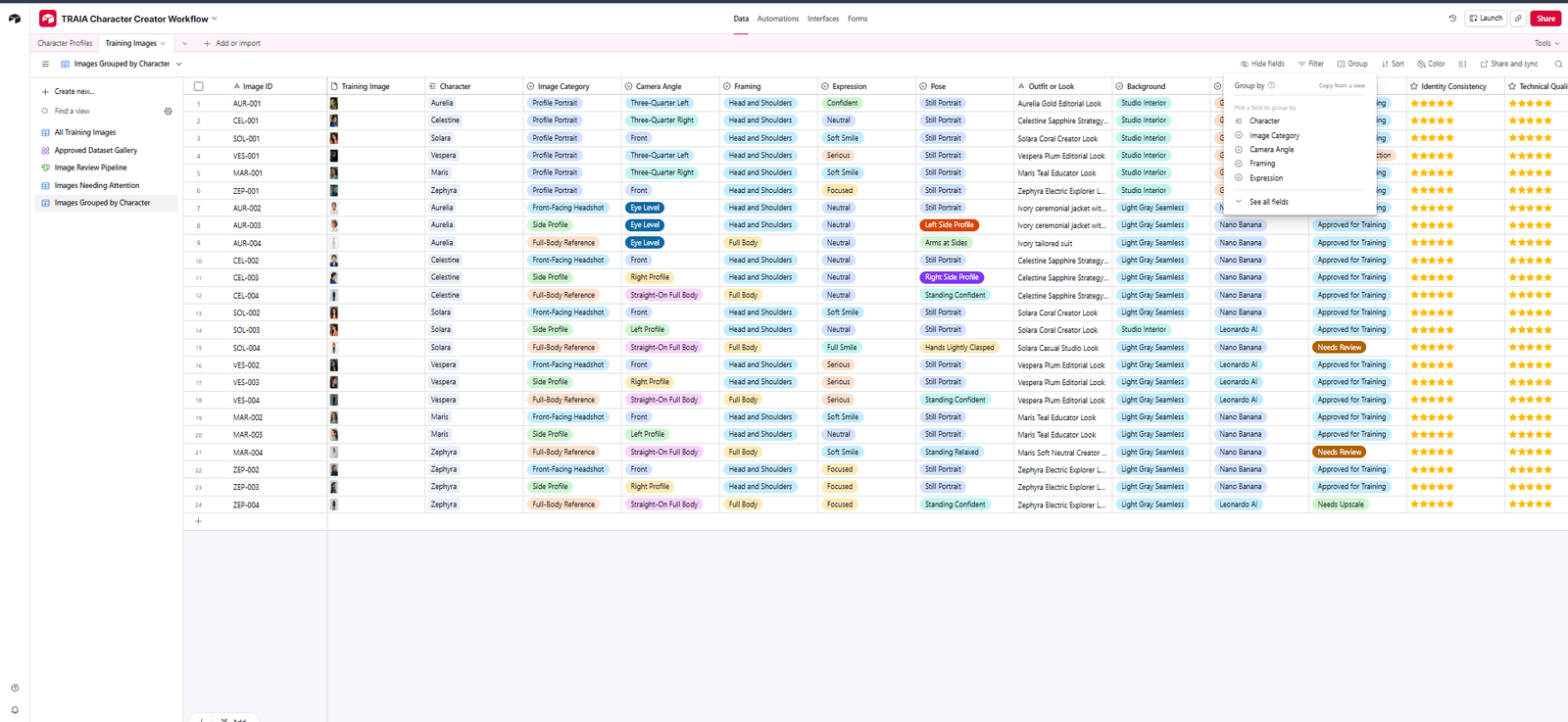
- Image ID
- Training Image
- Character
- Image Category
- Camera Angle
- Framing
- Expression
- Pose
- Outfit or Look
- Background
- Creation Tool
- Dataset Decision
- Identity Consistency
- Technical Quality
- Training Suitability
- File Name
- Prompt Used
- Negative Prompt
- Review Notes
- Approval Date
- Date Created
- Last Updated
This kind of metadata is especially useful when you are testing images across platforms like Leonardo AI, Midjourney-style workflows, Runway, PixVerse, Pika, Canva, ChatGPT, Claude, Gemini, Grok, Suno, ElevenLabs, or WordPress publishing systems. Airtable does not need to replace every tool. It can simply help you remember what happened, where the asset came from, and what decision you made.
Views Make Airtable Powerful
One of the most useful parts of Airtable is that the same information can be viewed in different ways. You do not need a separate spreadsheet for every perspective. You can create a view for the creator, another for the reviewer, another for the content calendar, and another for the final approved dataset.
All Character Profiles
A complete grid view of every character, status, training goal, and identity note.
Character Gallery
A visual view for quickly scanning profile images, archetypes, and current development stages.
Character Development Pipeline
A Kanban view that groups characters by status so progress is easier to understand at a glance.
All Training Images
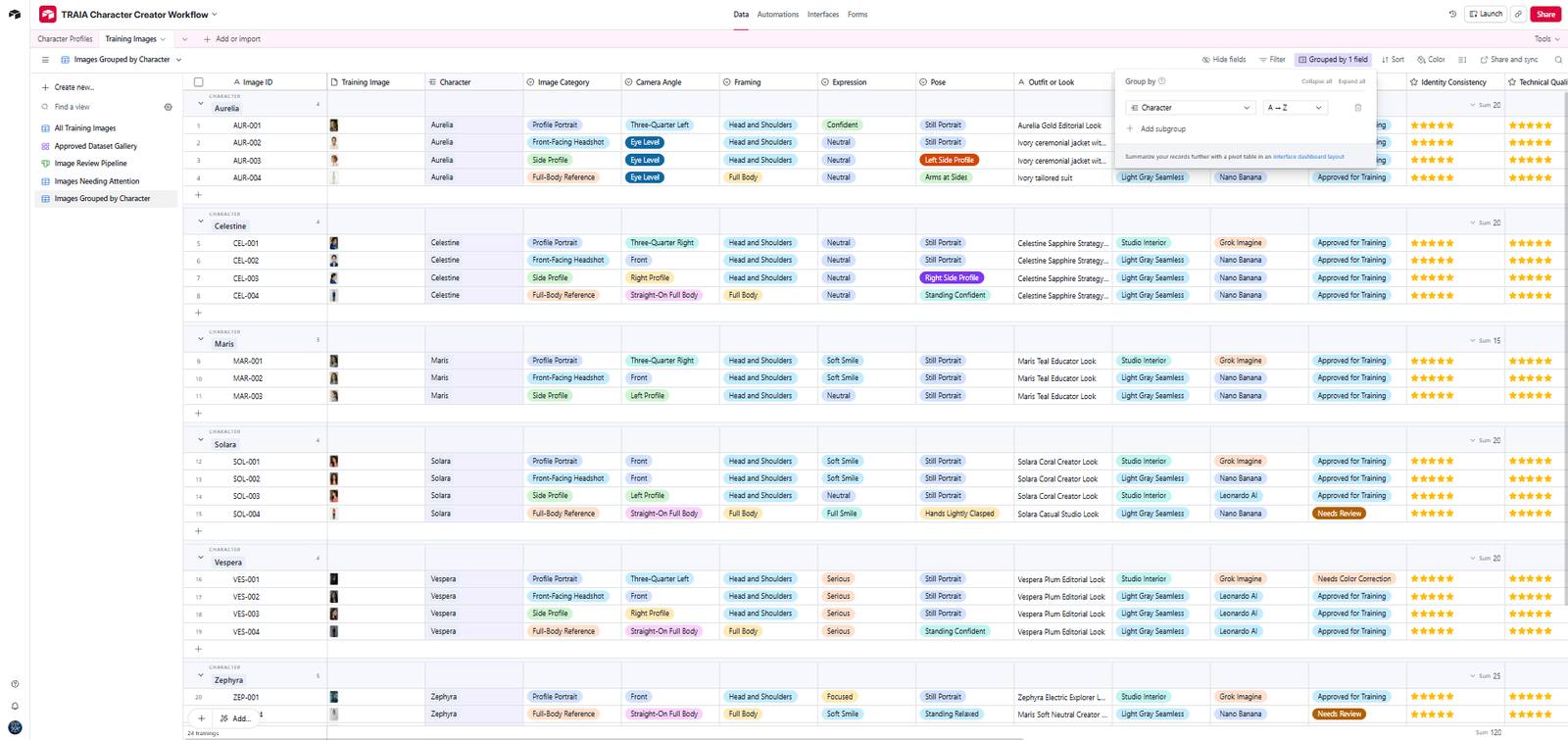
A full metadata grid where every image can be reviewed, rated, filtered, and connected to its character.
Approved Dataset Gallery
A visual gallery of images that are approved and ready to move into a final dataset.
Images Needing Attention
A filtered view for images that need review, cropping, upscaling, face correction, color correction, or replacement.
Linked Records Are the Real Upgrade
The real difference between a basic spreadsheet and a stronger Airtable workflow is the way related information can connect. Instead of storing everything in one giant table, you can create separate tables for characters, training images, content ideas, prompts, platforms, campaigns, or assets, then link them together.
In this example, each training image connects back to the character it belongs to. That means you can open a character profile and see related images, or open an image and see the character profile it supports. You are not copying the same identity details over and over. You are building a relational system.
Quality Control for AI Images
Quality control matters because AI image consistency depends on the quality of the inputs you keep. Not every generated image belongs in a final dataset. Some images are strong enough for training. Others need review, a crop, an upscale, a face correction, color correction, or a full replacement.
Dataset decision labels you can use
- Approved for Training
- Pending Review
- Needs Review
- Needs Crop
- Needs Upscale
- Needs Face Correction
- Needs Color Correction
- Duplicate
- Rejected
These labels are simple, but they can save a lot of time. When you are building a visual system, the ability to filter down to only the images that need action is one of the fastest ways to prevent a messy database from becoming another messy folder.
Beyond Characters: Other Ways Creators Can Use Airtable
A character training database is only one example. The same structure can be used for almost any AI creator workflow where ideas, assets, statuses, deadlines, and decisions need to stay connected.
Content calendars
Track blog posts, YouTube videos, shorts, reels, newsletters, social posts, publish dates, platforms, and performance notes.
Prompt libraries
Store prompts by tool, use case, category, output quality, variables, and examples of what each prompt produced.
AI video shot lists
Organize shots, image inputs, motion prompts, music cues, voiceover notes, model choices, and final video links.
Digital product systems
Track product ideas, assets, templates, copy, checkout links, upload status, launch tasks, and support notes.
Client or team workflows
Share views with collaborators, organize approvals, collect notes, and keep everyone aligned around the same records.
AI tool testing
Compare the same prompt across different tools so you can document what each platform does best.

How to Start Simple
Airtable can become advanced, but your first base does not need to be complicated. The best starting point is usually one real problem you already have: lost prompts, scattered images, unclear approval status, or a content calendar that lives in too many places.
Create one base
Choose one workflow to organize first. Do not try to rebuild your entire creator business on day one.
Add one table for projects or characters
This becomes the source of truth for the main thing you are managing.
Add one table for assets
This can hold images, prompts, videos, files, scripts, captions, or reference material.
Link related records
Connect the asset table back to the project or character table so your information stays clean.
Add statuses
Use clear labels like Draft, In Progress, Needs Review, Approved, Scheduled, Published, or Rejected.
Create gallery and Kanban views
Give yourself a visual way to review assets and a workflow view for tracking progress.
Filter what needs attention
Build views that surface only the records you need to act on next.
Beginner tip: Airtable is easiest to learn when you build around a real workflow instead of starting with a blank, abstract system. Pick something you already repeat, then turn that repeatable process into fields, statuses, views, and links.
Who Airtable Is Best For
Airtable is best for creators, small businesses, marketers, educators, independent builders, and teams who want more organization around their data or more data around their organization. It is especially helpful when your workflow includes visual assets, approvals, status tracking, collaboration, or repeated production steps.
It may be more than you need if you are only casually experimenting with AI tools and do not need to preserve prompt history, share assets, or track decisions. In that case, a simple note, folder, or spreadsheet may be enough.
Airtable vs. Google Sheets, Notion, and Trello
Google Sheets is still useful for lightweight tables and quick calculations. Notion is strong for writing, notes, and knowledge bases. Trello is simple for task boards. Airtable becomes more useful when you want a database that can hold structured records, attachments, visual views, linked tables, filters, forms, and workflow logic in one place.
The tradeoff is that Airtable requires more setup thinking at the beginning. You need to decide what your tables are, what your fields mean, and how your records should connect. Once that foundation is in place, it can make creative production much easier to scale.
Frequently Asked Questions
Is Airtable good for content creators?
Yes. Airtable is useful for content creators who need to organize ideas, prompts, assets, publishing calendars, review notes, platform assignments, and repeatable workflows.
Can Airtable be used for AI workflows?
Yes. Creators can use Airtable to track prompt history, AI-generated images, video tests, scripts, training images, approval status, and content production pipelines.
Can I store AI prompts in Airtable?
Yes. You can create a prompt library with fields for the prompt, tool, use case, variables, output quality, examples, and notes about what worked.
Can Airtable organize AI-generated images and videos?
Yes. Airtable attachment fields and gallery views can help organize generated images, video files, reference screenshots, thumbnails, and other creative assets.
Is Airtable better than Google Sheets?
It depends on the workflow. Google Sheets is great for simple tables and calculations. Airtable is stronger when you need visual views, attachments, linked records, filtered workflows, and database-style organization.
Is Airtable difficult to learn?
There can be a learning curve at first, especially when setting up bases correctly. It becomes easier when you start with one real workflow and build from there.
Can Airtable automate content creation?
Airtable can support automations around a content workflow, such as notifications, status updates, or task handoffs. It should be configured intentionally and paired with the right tools for your process.

Ready to Turn Your AI Workflow Into a System?
If your prompts, images, ideas, and publishing plans are starting to feel scattered, Airtable is one of the easiest ways to start building a creator operating system you can actually reuse.
Helpful Airtable Resources
Use these official Airtable resources if you want to go deeper after building your first base.