When Google announced Gemini Omni, I did not want to just read the release and move on. I wanted to test Google Gemini Omni the way creators will actually use it.
Not in a perfect demo environment. Not with a generic prompt. Not with one random image and a lucky result.
I wanted to know if Google Gemini Omni could take several different creative assets, understand what mattered in each one, and build something that felt like a real branded scene.
For The Real AI Agents, that is the difference between a fun AI experiment and an actual workflow.
The question behind this Google Gemini Omni test was simple: Can it help turn separate creative assets into one usable scene that could actually become part of a video workflow?
Creator testing note: This is not a sponsored review. I am testing Gemini Omni as a creator who uses AI tools daily to see how it actually performs in a real workflow, how it handles brand assets, and how closely it lives up to the hype.
Why I was excited to test Google Gemini Omni
I already use and follow a lot of Google AI products closely, so Google Gemini Omni was not coming into my workflow as a random tool I had never paid attention to. I have been genuinely interested in how Google is building across AI research, search, creative tools, productivity, and education.
NotebookLM is one of the Google AI tools I have been especially impressed by because of how useful it can be for organizing source material, studying information, and turning documents into something easier to understand. Nano Banana has also been one of the tools I have watched closely for visual creation and creative testing.
That is why this Google Gemini Omni test felt worth doing. I am not just looking at it as a headline. I am looking at it from the perspective of someone who is already building with these tools and asking whether it can hold up inside a creator workflow.
The question behind this Google Gemini Omni workflow
A lot of AI tools can make something beautiful. That part is no longer shocking. The harder test is whether the tool can follow direction.
- Can it keep the character recognizable?
- Can it understand that an emblem is a brand element?
- Can it place everything into the world naturally?
- Can the result become the starting point for a video?
That is the kind of Google Gemini Omni workflow test that matters for creators who are building brands, characters, YouTube content, digital products, or AI-assisted storytelling systems.
Step one: Building the Google Gemini Omni reference set
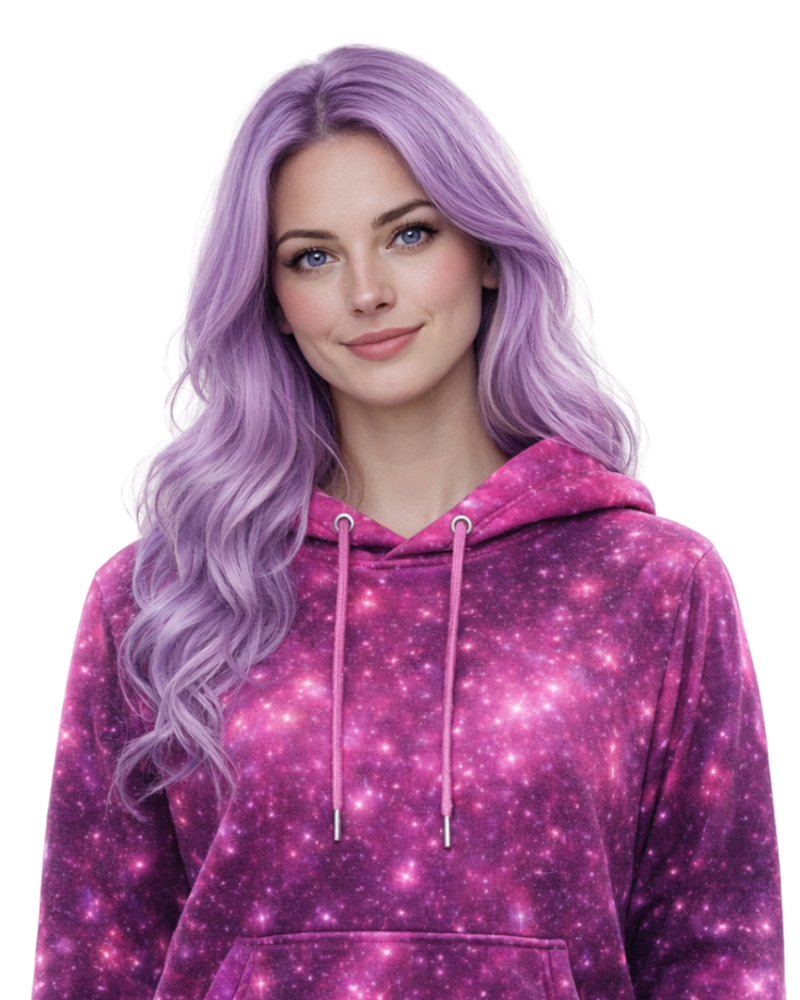
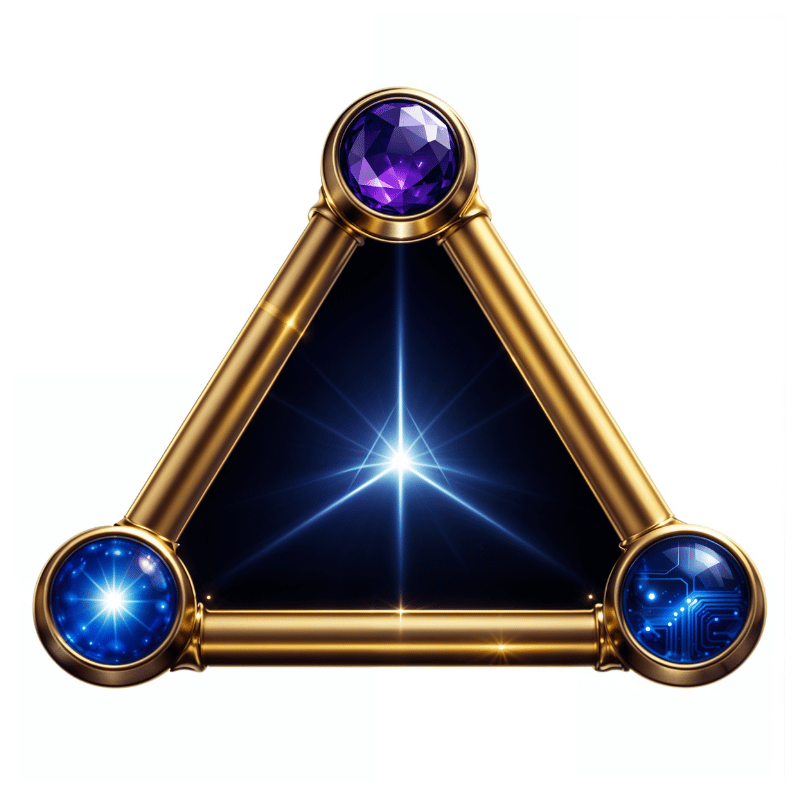
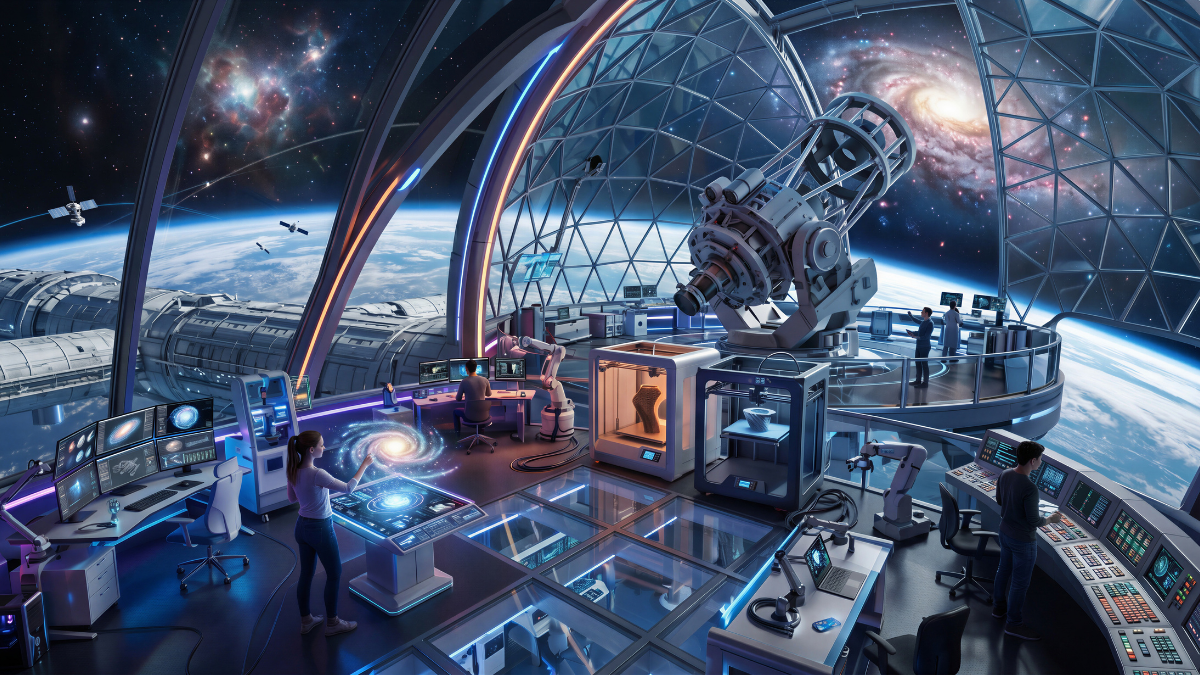
For this experiment, I used three references: a character image of Astra, the TRAIA emblem, and a futuristic cosmic observatory scene. The goal was not to create a random sci-fi image. The goal was to see if Google Gemini Omni could combine those inputs into one coherent visual direction.
The three reference inputs used for this Google Gemini Omni test: Astra for character identity, the TRAIA emblem for brand consistency, and a futuristic cosmic observatory for the scene environment.
Astra is the subject. The emblem is the brand signal. The observatory is the world.
That structure helped keep the test focused. Instead of asking the model to invent everything, I gave it strong ingredients and asked it to assemble the scene.
Step two: Keeping the Google Gemini Omni prompt simple
One of the biggest surprises was that the prompt did not need to be complicated.
I started thinking we might need a long cinematic prompt with a lot of detail, but the cleaner version worked better for this type of test. When the references are already strong, the prompt can stay direct.
Simple prompt direction
Use the first reference for the woman, the second reference for the emblem, and the third reference for the setting. Place the woman inside the futuristic cosmic observatory. Keep her lavender hair and galaxy hoodie clear. Add the emblem naturally into the scene as a glowing holographic feature. Make the image cinematic, detailed, and polished.
That was it. No huge paragraph. No overstuffed style list. No trying to force every detail at once.
This is a big takeaway for me. When the reference images are strong, simple language can be enough. The model already has a lot to work with.
Step three: Turning references into one Google Gemini Omni scene
The result felt like a TRAIA-style opening frame. Astra was placed inside the observatory with the cosmic background, glass architecture, glowing tech, and space view all working together. The emblem appeared as a luminous feature in the world instead of looking like a sticker pasted onto the image.
That mattered. A branded AI scene has to feel integrated. If the subject, environment, and emblem all look like separate pieces, the image might be pretty, but it is not useful for a real brand workflow.
1
References
Start with character, emblem, and setting inputs.
2
Scene Build
Combine the assets into one cinematic frame.
3
Motion Prompt
Define what moves and what stays protected.
4
Video Test
Move the strongest frame into animation.
This one felt usable. It could work as a blog hero image, a video thumbnail concept, a short-form intro frame, or the first scene in a larger AI video test.
Step four: Moving from image to motion in Google Flow
Once the still image worked, the next natural step was animation.
This is where the workflow got more interesting. Inside Google Flow, the system made it clear that model choice matters. There is a difference between using a generated image as inspiration and using a generated image as a literal first frame.
Reference-based video direction
The model uses the image as visual guidance and may reinterpret some details while creating motion.
First-frame animation
The model attempts to start from the exact image and animate forward from that specific frame.
For this test, I treated the generated image as the visual foundation and created a controlled motion prompt around it. The goal was not to make the scene explode with motion. The goal was to make it feel alive without losing the parts that mattered.
Step five: Writing the Google Gemini Omni motion prompt
For the animation, I did not want to overload the scene. The image already had a lot happening: a character, an emblem, a glass observatory, Earth outside the windows, stars, holograms, screens, and a large telescope structure.
If the motion prompt asked for too much, the risk was obvious. Astra’s face could shift. The hoodie could morph. The emblem could distort. The scene could become too busy.
Motion prompt direction
Slow cinematic push-in on the woman inside the cosmic observatory. Keep her face, lavender hair, galaxy hoodie, and the emblem consistent. Add subtle hair movement, soft glowing particles, pulsing holographic light around the emblem, and gentle movement in the stars and control panels. Keep the camera smooth, stable, and premium, with no character changes and no emblem distortion.
That prompt is not trying to create chaos. It is trying to protect the frame.
That is how I think creators need to approach AI video right now. You are not just asking for movement. You are deciding what is allowed to move and what needs to stay locked.
Try a Google Gemini Omni workflow yourself
The easiest way to understand this kind of AI workflow is to test it with your own reference images. Start with one clear character image, one brand or style reference, and one environment image. Then use a simple prompt that tells the model what each reference should control.
For this test, I used Google Flow and Gemini-style reference prompting to see how far I could push character identity, brand consistency, and motion direction in one short video workflow.
Starter prompt you can adapt
Use reference image 1 as the character, reference image 2 as the brand emblem or style reference, and reference image 3 as the setting. Create a short cinematic video where the character stands inside the environment while the emblem activates beside them. Keep the character, outfit, face, and emblem consistent. Add subtle motion, glowing particles, soft camera movement, and a polished futuristic mood.
What this Google Gemini Omni test taught me
This was a small test, but it showed me a lot about where these tools are heading.
- Google Gemini Omni can create a strong visual blend from multiple references when the inputs are clear.
- The workflow still requires judgment, especially when choosing between reference-based generation and first-frame animation.
- Prompt length is not always the answer. Clean direction can perform better than a crowded prompt.
- AI video still needs protective prompting when faces, logos, outfits, and brand elements matter.
For me, this is where AI creation starts feeling less like prompting and more like directing.
You are setting the scene, protecting the identity, choosing the camera behavior, and deciding where the energy should go.
The credit system is part of the workflow
Another practical piece I noticed during testing was the Google Flow credit system.
The credit screen showed that Google Flow uses credits, and those credits can vary depending on the subscription level and model being used. It also showed that free users receive a daily amount, while paid Google AI plans receive monthly Flow credits.
This matters because AI video testing is rarely one-and-done. A real workflow might include creating the first image, generating alternate compositions, upscaling, testing animation, changing models, correcting motion, and exporting the best version.
Beautiful results are exciting, but repeatability matters more.
Where Google Gemini Omni fits for creators
I do not see Google Gemini Omni as a replacement for the entire creator stack. At least not yet.
For me, it fits better as a powerful new stage inside the workflow. I would use it for concept development, reference-based scene creation, branded visual testing, cinematic intro frames, AI video experiments, and short-form creative assets.
Then I would still bring the best pieces into tools like DaVinci Resolve for editing, polish, sound, pacing, captions, and final delivery.
Google Gemini Omni can help create the moment. Your editing system still builds the final product.
For TRAIA, this is especially useful because so much of the brand relies on consistency. Characters, emblems, environments, and cinematic style all need to feel connected. You can explore more tool breakdowns and creator resources in the TRAIA AI Tools Hub.
My honest early impression
My early impression is that Google Gemini Omni is very promising, especially for creators who already understand reference-based workflows.
The image quality was strong. The visual blending was better than expected. The emblem integration was impressive. The environment felt premium. And the still image was good enough to move into animation testing.
But I would not call it effortless. You still need to guide it. You still need to protect important details. You still need to understand model choice. You still need to test more than one result.
That is not a negative thing. That is just the reality of serious AI production. The best results still come from a creator who knows what they are building.
Final thoughts on Google Gemini Omni
This first test made Google Gemini Omni feel less like another AI announcement and more like something I can actually place inside a creative workflow.
The most exciting part is not just that it can generate a beautiful image. We already have tools that do that. The exciting part is the direction this points toward.
A workflow where you can bring in a character, a brand symbol, an environment, a prompt, and eventually motion or audio references, then keep shaping the result through natural language.
That is where AI creation starts to feel more like an interactive production system.
For now, I see Google Gemini Omni as a tool worth testing carefully. Not with random prompts, but with real assets, real brand goals, and real creator use cases.
Because the future of AI content is not just about generating more. It is about building smarter systems that help creators move from idea to finished asset faster, with more control and more consistency.
Want more real AI creator workflow tests?
Join the TRAIA Creator Network for practical experiments, tool breakdowns, prompt strategy, and behind-the-scenes notes from real AI production workflows.
Join the TRAIA Creator Network